
SharePoint Migration: Complete Guide to Seamless Business Transition
Harash Jindal
May 6, 2026

Today’s digital world demands that businesses work together, protect data, and grow seamlessly.
This pressure often causes organizations to rush decisions, especially about migration. That’s when problems can begin.
You might end up with broken permissions, missing workflows, and confused users.
When this happens, a process that should have been smooth turns into weeks of unexpected fixes, delays, and frustration. To prevent these setbacks, this guide will help ensure your migration goes smoothly and without disruption.
This guide is your roadmap for a smooth, disruption-free migration.
Whether you’re considering or planning a migration to SharePoint Online, this guide shows you what to expect, what it costs, how long it takes, and, most importantly, how to keep your business running smoothly at every step.
This guide is part of our broader cloud migration resource library. For a high-level strategic framework, see our Cloud Migration Strategy Implementation Guide.
What is SharePoint Migration — and Why Does It Matter Now?
SharePoint migration is the process of moving your organization’s documents, permissions, workflows, and site structure from a legacy environment — on-premises servers, file shares, older SharePoint versions, or other document systems — to SharePoint Online within Microsoft 365.
It ensures:
- Secure data transfer — files and metadata move safely, without exposure or corruption.
- Structured content organization — the new environment is clean, logical, and accessible.
- Permissions and workflow retention — users retain appropriate access and automation continues uninterrupted.
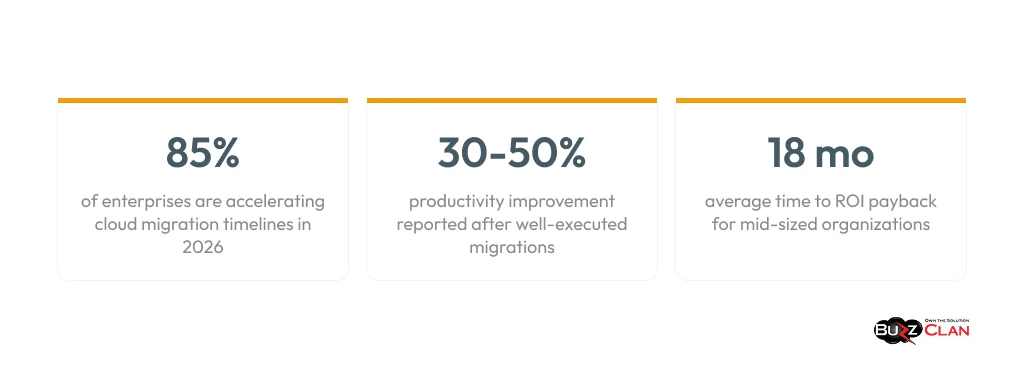
In 2026, the case for moving is stronger than it’s ever been. Hybrid and remote work made on-prem document systems a liability. Microsoft’s ongoing investment in SharePoint Online — AI-powered search, tight Teams integration, Copilot capabilities — means the cloud version is now a meaningfully better product than anything you can run on a local server.
The Four Types of SharePoint Migration
Not all migrations are the same. The complexity, timeline, and cost of your project depend heavily on which of these scenarios applies to your organization.
| Migration type | What it involves | Best suited for | Complexity |
|---|---|---|---|
| On-premises → SharePoint Online | Moving from local servers to the cloud | Modernization, cost reduction | Medium |
| Tenant-to-tenant | Moving between two Microsoft 365 tenants | M&A, restructuring | High |
| File server migration | Bringing unstructured shared drives into SharePoint | Data cleanup, organization | Medium |
| Legacy system replacement | Replacing old document or collaboration tools entirely | Full transformation | High |
Tenant-to-tenant migration deserves special mention — it’s the scenario most often underestimated. When two organizations merge, you’re not just moving files; you’re reconciling two identity systems, two sets of user accounts, and two governance frameworks. A structured approach is non-negotiable, which is why many organizations rely on a well-defined cloud migration strategy to guide decisions at the executive level.
Not Sure Which Migration Type Applies to You?
Our team can assess your environment and recommend the right approach in a free 30-minute call.
SharePoint Migration Real Risks — and Why Most Teams Underestimate Them
Vendor materials tend to mention risks briefly before moving on to solutions. We’d rather dwell on them, because understanding what goes wrong is what drives the planning decisions that prevent it.
- Data loss or corruption — Files that don’t transfer cleanly, metadata stripped during migration, or content that moves but becomes inaccessible in the new environment.
- Broken permissions — Users who could access certain libraries before migration suddenly can’t — or worse, gain access they shouldn’t have.
- Workflow failures — Automations and approval flows that depended on the old environment break silently and aren’t noticed until a critical process stalls.
- Unexpected downtime — A cutover window that runs over, or a validation issue discovered after production traffic is already live on the new environment.
- Compliance gaps — Retention policies, audit logs, or data residency requirements that weren’t set up correctly in the new environment from the start.
- Low user adoption — Technically successful migrations where users simply route around the new system, reverting to email attachments and personal drives out of habit.
The good news: every one of these risks is manageable with proper planning. The bad news: they all require deliberate mitigation work, and most DIY or tool-only approaches skip at least two or three. To reduce these risks, organizations often rely on Cyber Security Services and Managed IT Services.
The SharePoint Migration Process: What Actually Happens in Each Phase
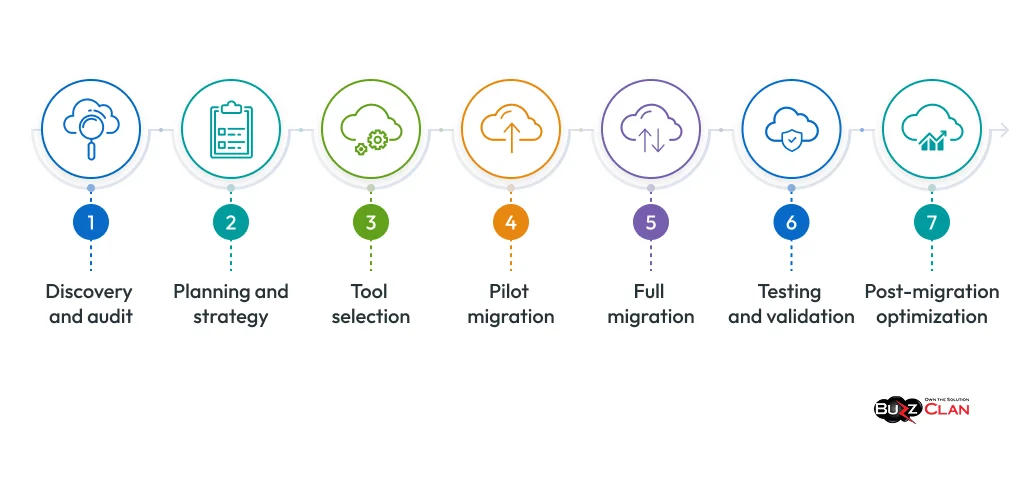
A well-run SharePoint migration follows seven phases. Here is what each phase involves, not just the label.
Discovery and audit
A complete inventory of everything in scope: files, folders, permissions, active workflows, compliance requirements, and any customizations in the current environment. This is the phase most projects rush, and the one that causes the most pain later. You can’t migrate what you don’t fully understand.
Planning and strategy
Based on the audit, you build a migration map: what goes where, in what order, with what tools. This is also when you clean the data — removing duplicates, archiving stale content, rationalizing folder structures that grew organically over years.
Tool selection
Microsoft’s native options (SharePoint Migration Tool, Mover) handle straightforward scenarios well. For complex environments — large volumes, intricate permissions, cross-tenant — third-party tools like ShareGate or Metalogix give you more control and better reporting. The right tool depends on your environment, not on brand preference.
Pilot migration
A controlled run with a representative subset of your data. This surfaces edge cases before they affect the whole organization, and gives you real-world validation of your timeline estimates.
Full migration
The main event, executed in phases. Incremental migration — moving content in manageable batches — is significantly safer than a single big-bang cutover. Some organizations choose a lift-and-shift approach for speed; others opt for refactoring to modernize their information architecture at the same time.
Testing and validation
Every major content area gets verified: files accessible, permissions correct, workflows functioning. Nothing gets signed off until it’s confirmed in the new environment. This is the gate before production cutover.
Post-migration optimization
The phase most projects neglect. Search configuration, permission auditing, storage optimization, and user onboarding sessions all happen here. This determines whether adoption actually takes hold. Our dedicated post-migration optimization guide covers this phase in detail.
See It in Practice
Read how a major enterprise asset management company automated database migration—cutting migration time by over 60%.
Choose tools that match your environment’s complexity—don’t overthink the selection, but ensure alignment.
| Tool | Type | Best for | Key limitation |
|---|---|---|---|
| SharePoint Migration Tool (SPMT) | Microsoft native | Simple on-prem to Online migrations | Limited flexibility for complex permission structures |
| Mover | Microsoft native | File share and cloud-to-cloud transfers | Not suited for large enterprise or cross-tenant scenarios |
| ShareGate | Third-party | Mid-market migrations, user-friendly UI | Premium pricing for large volumes |
| Metalogix (Quest) | Third-party | Enterprise-grade, high-volume migrations | Steeper learning curve, requires configuration expertise |
Most enterprise organizations find that a hybrid approach works well. They use native tools for simple content and third-party tools for more complex permissions and workflows. A reliable migration partner should already have processes set up for both situations.
Zero-Downtime Migration: What It Actually Means in Practice
The term “zero downtime” is often used loosely in migration marketing. A real zero-downtime strategy is not magic; it relies on proven methods.
Parallel environment setup
The new SharePoint environment is fully set up and running before any user changes are made. Both the old and new systems run in parallel during the transition, so users always have access.
Incremental data migration
Content is moved in phases instead of all at once. This approach limits the impact of any issues and allows the migration to continue even if one batch needs to be fixed.
Continuous permission sync
User and permission mapping is checked throughout the migration, not just at the end. This way, users always have the access they need.
Off-hours cutover scheduling
Final steps, DNS changes, and routing and production traffic are planned during the organization’s quietest hours to minimize user impact.
Pre-cutover validation gate
Nothing goes live until a full check confirms that content, permissions, and workflows all work correctly in the new environment. The switch only happens after this step is complete.
This approach takes more planning at the start and usually means the whole process takes a bit longer, but it removes the high-risk moments that can disrupt business. For organizations where downtime affects revenue or compliance, this method is essential.
DIY vs Tools-Only vs Migration Partner: Comparison
Choosing the right migration approach is more than a technical choice. It affects risk, cost, timelines, and the long-term stability of your systems. Below is a clear comparison of the three common approaches organizations use during migration:
| Approach | Risk level | Upfront cost | Hidden costs | Likely outcome |
|---|---|---|---|---|
| DIY (internal IT only) | High | Low | Remediation, cleanup, extended timelines | Unpredictable — depends heavily on team bandwidth and expertise |
| Tools only (no services) | Medium | Medium | Configuration errors, missed edge cases | Adequate for simple migrations; risky for complex environments |
| Migration partner | Low | Higher upfront | Minimal — scoped and managed | Consistent, auditable, with post-migration support |
The DIY route is tempting on a budget spreadsheet. In practice, the hidden costs — cleanup work, extended timelines, user frustration — routinely exceed the savings. For anything beyond a small, simple environment, a structured partner engagement delivers better ROI. Read more about how organizations approach cloud migration decisions at the strategic level.
What Does SharePoint Migration Actually Cost?
The exact answer varies by environment. The ranges below are representative; the table explains what pushes you to the higher end.
| Organization size | Users | Typical scenario | Estimated cost | Timeline |
|---|---|---|---|---|
| Small business | Under 50 | Basic file shares, few workflows | $5,000 – $15,000 | 2–4 weeks |
| Mid-sized | 50–500 | Multiple sites, custom permissions, some workflows | $15,000 – $50,000 | 1–3 months |
| Enterprise | 500+ | Complex environments, compliance, cross-tenant | $50,000+ | 3–6 months |
What Pushes the Cost Higher?
| Cost driver | Impact |
|---|---|
| Large or disorganized data volumes | Increases audit, cleanup, and transfer time significantly |
| Complex permission structures | Requires manual mapping and validation at each level |
| Cross-tenant migration (M&A) | Identity reconciliation adds substantial complexity |
| Active workflow and automation dependencies | Each workflow must be documented, tested, and rebuilt or migrated |
| Strict compliance requirements | Audit trails, retention policies, and data residency all need careful setup |
| Need for data cleanup before migration | Can add weeks to the pre-migration phase |
Post-Migration Optimization: The Phase Most Teams Skip
Here’s an uncomfortable truth: a technically successful migration can still be a business failure if nobody uses the new environment effectively.
Post-migration optimization is where you configure search relevance, audit and tighten permissions, set up proper governance policies, train users on the new environment, and measure adoption. This work is what converts a migration into a productivity transformation.
It’s also the phase where organizations find cost savings they didn’t anticipate — right-sizing storage, eliminating redundant licenses, and optimizing governance so the environment stays clean over time.
Post-migration optimization services are specifically designed for this phase—covering performance tuning, cost optimization, and user adoption programs in the weeks and months after cutover.
Pre-Migration Checklist: What to Have in Order Before You Start
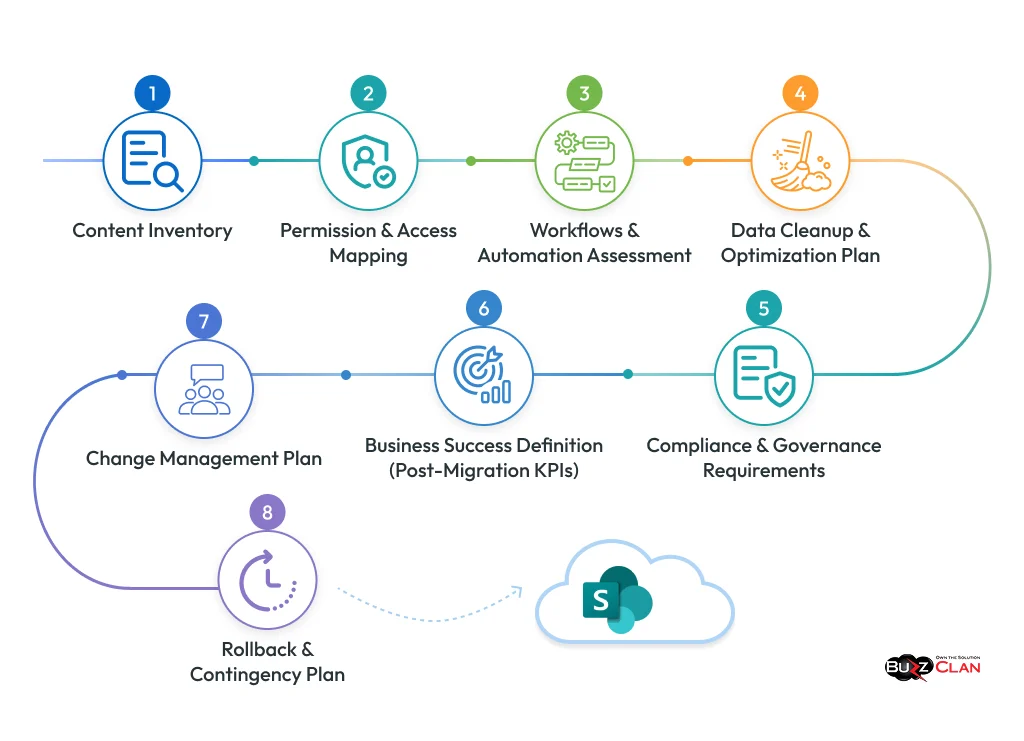
Content Inventory
- Complete inventory of all sites, document libraries, folders, and file shares within scope
- Identification of content owners for each major area
- Classification of content based on business relevance (active, inactive, archived)
Permission & Access Mapping
- Documented permission structure across all content areas
- Mapping of users, groups, and role-based access controls (RBAC)
- Identification of broken inheritance or unique permissions
Workflows & Automation Assessment
- Mapped list of all active workflows, automations, and Power Automate flows.
- Identification of legacy workflows (SharePoint Designer, third-party tools, etc.)
- Impact analysis for each workflow during migration
Data Cleanup & Optimization Plan
- Identify duplicate files and redundant content.
- Flag stale or unused data for archival or deletion.
- Data categorization: migrate, archive, or eliminate
- Storage optimization strategy to lower migration cost and clutter
Compliance & Governance Requirements
- Documented compliance requirements (industry-specific + internal policies)
- Retention and deletion policies are clearly defined.
- Audit logging and monitoring requirements
- Data residency and sovereignty rules (if applicable)
Business Success Definition (Post-Migration KPIs)
Define clear success metrics at:
- 30 Days: System stability, user access restored, minimal critical issues
- 60 Days: Adoption tracking, workflow stabilization, reduced support tickets
- 90 Days: Full operational efficiency, performance optimization, and user satisfaction
Change Management Plan
- Define a communication strategy specifying who informs users and stakeholders
- Communication channels (email, Teams, intranet, training sessions)
- User training and onboarding plan
- Set a timeline for announcements before, during, and after migration.
Rollback & Contingency Plan
- Clearly defined rollback strategy in case of migration failure
- Backup and restore procedures before cutover
- Decision points for rollback activation
- Defined recovery path to ensure business continuity
Conclusion
From an AI-driven enterprise perspective, SharePoint migration is no longer just an IT modernization task—it is a foundational step toward building an AI-ready organization.
With Microsoft 365 AI capabilities, SharePoint is evolving into an intelligent knowledge system, where clean and well-structured data is essential for tools like Copilot, AI search, and automation to perform effectively. Poor or unstructured migrations directly impact AI accuracy, search relevance, and user adoption, making migration a critical part of enterprise AI readiness.
In simple terms, without a properly planned and structured migration, AI initiatives cannot deliver their full value, while a well-executed migration ensures a modern, efficient, and AI-ready organization.
Frequently Asked Questions
It depends on size and complexity. Small migrations take 2–4 weeks, mid-sized projects take 1–3 months, and enterprise migrations usually take 3–6 months, including planning and audit phases.
The main risks include data loss, broken permissions, workflow failures, and low user adoption. Most of these issues can be avoided with proper planning, pilot testing, and validation.
Yes. With a proper zero-downtime approach using parallel environments, phased migration, and off-hours cutover, users can continue working without disruption.
Lift-and-shift moves everything as-is to SharePoint Online, while refactoring improves and restructures the environment during migration. The choice depends on your current setup and future goals.
Post-migration optimization begins, including search tuning, governance setup, permission checks, and user adoption support to ensure long-term success.
It involves assessment, user and permission mapping, tool selection, pilot migration, phased execution, and final validation. This is one of the most complex migration scenarios.
They typically include migration planning, data transfer, security setup, compliance configuration, and post-migration optimization across SharePoint, Teams, OneDrive, and Exchange.

Get In Touch
Follow Us

Table of Contents
- What is SharePoint Migration — and Why Does It Matter Now?
- The Four Types of SharePoint Migration
- SharePoint Migration Real Risks — and Why Most Teams Underestimate Them
- The SharePoint Migration Process: What Actually Happens in Each Phase
- Zero-Downtime Migration: What It Actually Means in Practice
- DIY vs Tools-Only vs Migration Partner: Comparison
- What Does SharePoint Migration Actually Cost?
- Post-Migration Optimization: The Phase Most Teams Skip
- Pre-Migration Checklist: What to Have in Order Before You Start
- Conclusion
- Frequently Asked Questions